

How to Create a Poll in Microsoft Teams with Easy Poll

Sophie Allen
Customer Success
May 2, 2026
Creating a poll in Microsoft Teams is one of the fastest ways to collect feedback, make a quick decision, or involve your team without starting another long discussion.
With Easy Poll, you can create a poll directly inside Microsoft Teams, post it into a channel, and let everyone vote right in the chat. No complicated setup. No long survey form. Just one clear question, a few answer options, and instant feedback from your team.
In this guide, we'll walk through a simple example: creating a lunch poll in a Microsoft Teams channel.
By the end, you'll know how to:
- Add Easy Poll to a Teams channel
- Create a basic poll with one question and multiple answers
- Post the poll into the channel chat
- Let team members vote directly in Microsoft Teams
Why use a poll in Microsoft Teams?
Team decisions often happen in chat, but chat is not always the best place to collect clear answers. Messages get buried, people reply in different formats, and it can be hard to see the final result.
A poll solves that problem.
Instead of asking, "What should we do for lunch?" and reading through twenty replies, you can create a simple poll with clear answer options. Everyone votes, and the result is easy to see.
- Choosing a meeting time
- Collecting feedback after a meeting
- Deciding on a team event
- Asking for opinions on a project decision
- Running quick check-ins with your team
- Getting feedback from remote or hybrid teams
For this tutorial, we'll keep it simple and create a basic channel poll.
Example poll: What should we order for team lunch?
Here is the poll we'll create:
What should we order for team lunch?
Answer options:
- Pizza
- Sushi
- Salad bowls
- Sandwiches
Step 1: Add Easy Poll to a Microsoft Teams channel
Before you create your poll, open the Microsoft Teams channel where you want to post it.
In many cases, Easy Poll can be added when you create a poll in a conversation. If you need to add it manually, go to the app section in Microsoft Teams, search for Easy Poll, and add it to the channel where you want to use it.
Once Easy Poll is available in the channel, you can start creating polls directly from the message area.
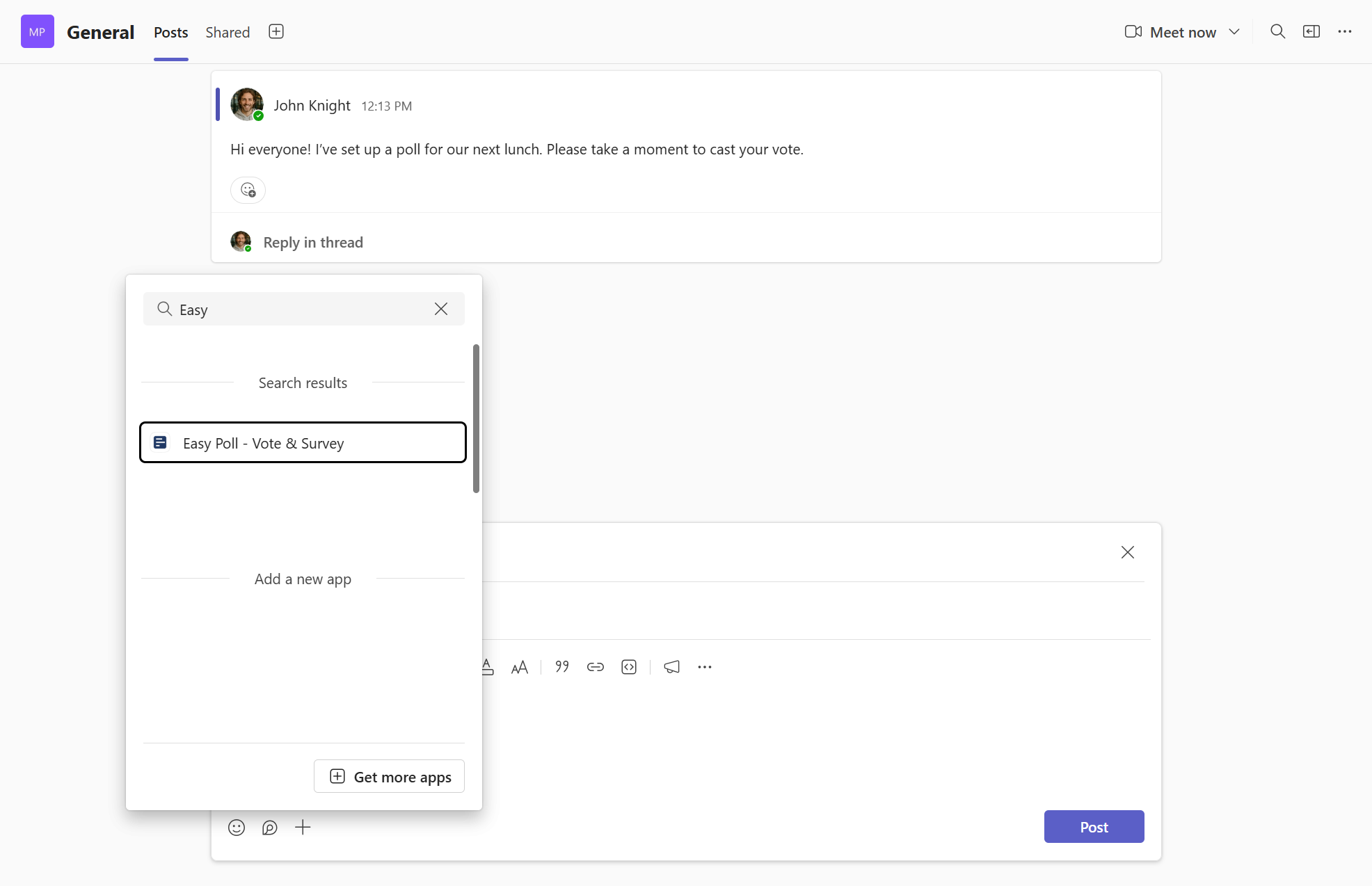
Add Easy Poll to the Microsoft Teams channel where you want to create polls.
Step 2: Create your poll question and answer options
Now it's time to create the poll.
In the Teams channel, open Easy Poll from the message area. Then enter your question and answer options.
What should we order for team lunch?
Add these answer options:
- Pizza
- Sushi
- Salad bowls
- Sandwiches
Keep the poll simple. A good Microsoft Teams poll should be easy to answer in a few seconds. If the question is too long or the options are unclear, fewer people will vote.
For a basic poll, one question and three to five answer options is usually enough.
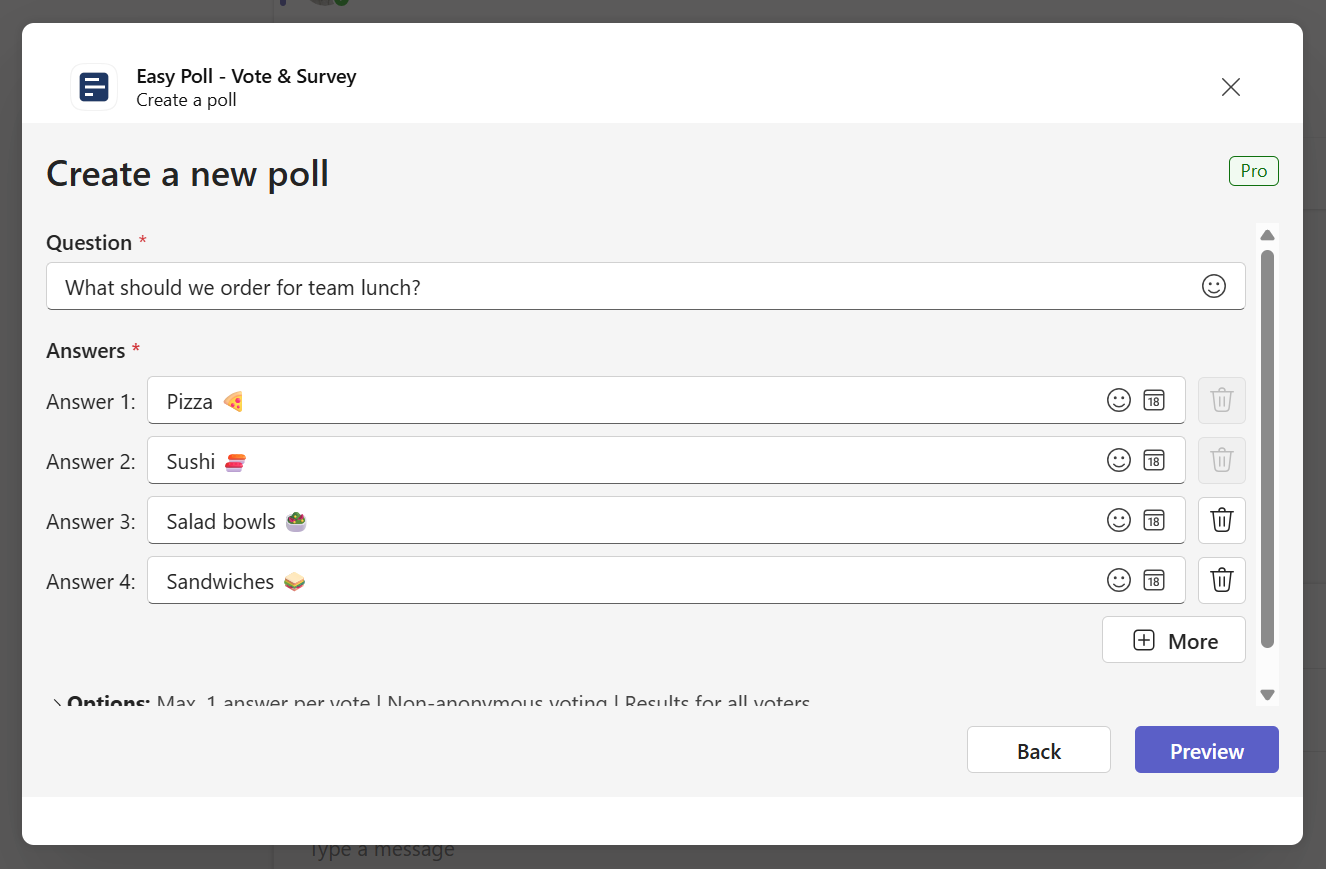
Create a poll in Easy Poll with one clear question and a few answer options.
Step 3: Post the poll into the Teams channel
After entering the question and answers, review the poll quickly.
Check that:
- The question is clear
- The answer options are spelled correctly
- The poll is being posted in the right channel
- The options cover the most likely answers
When everything looks good, post the poll.
Easy Poll will publish the poll into the Microsoft Teams channel, so your team can see the question directly in the chat.
What should we order for team lunch?
Team members can now vote without leaving Microsoft Teams.
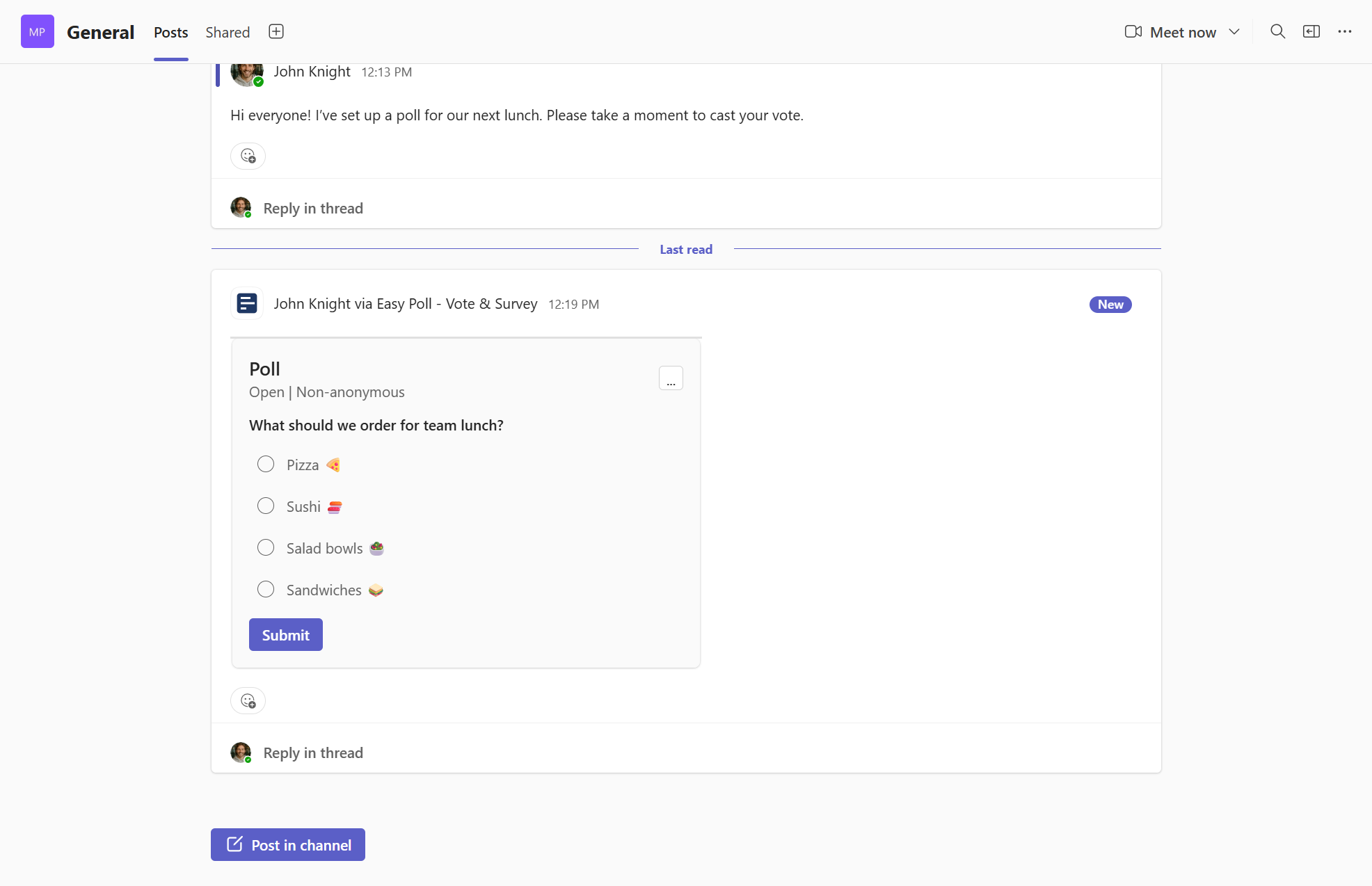
Post the Easy Poll card into the Teams channel chat so everyone can vote.
Step 4: Vote on the poll in Microsoft Teams
Once the poll is posted, team members can vote directly in the channel.
They simply choose one of the available answers, such as Pizza, Sushi, Salad bowls, or Sandwiches.
This keeps the voting process quick and natural. The poll appears where the team is already working: inside Microsoft Teams.
After votes are submitted, the answers are shown in the chat, making it easy for everyone to see the available choices and follow the result.
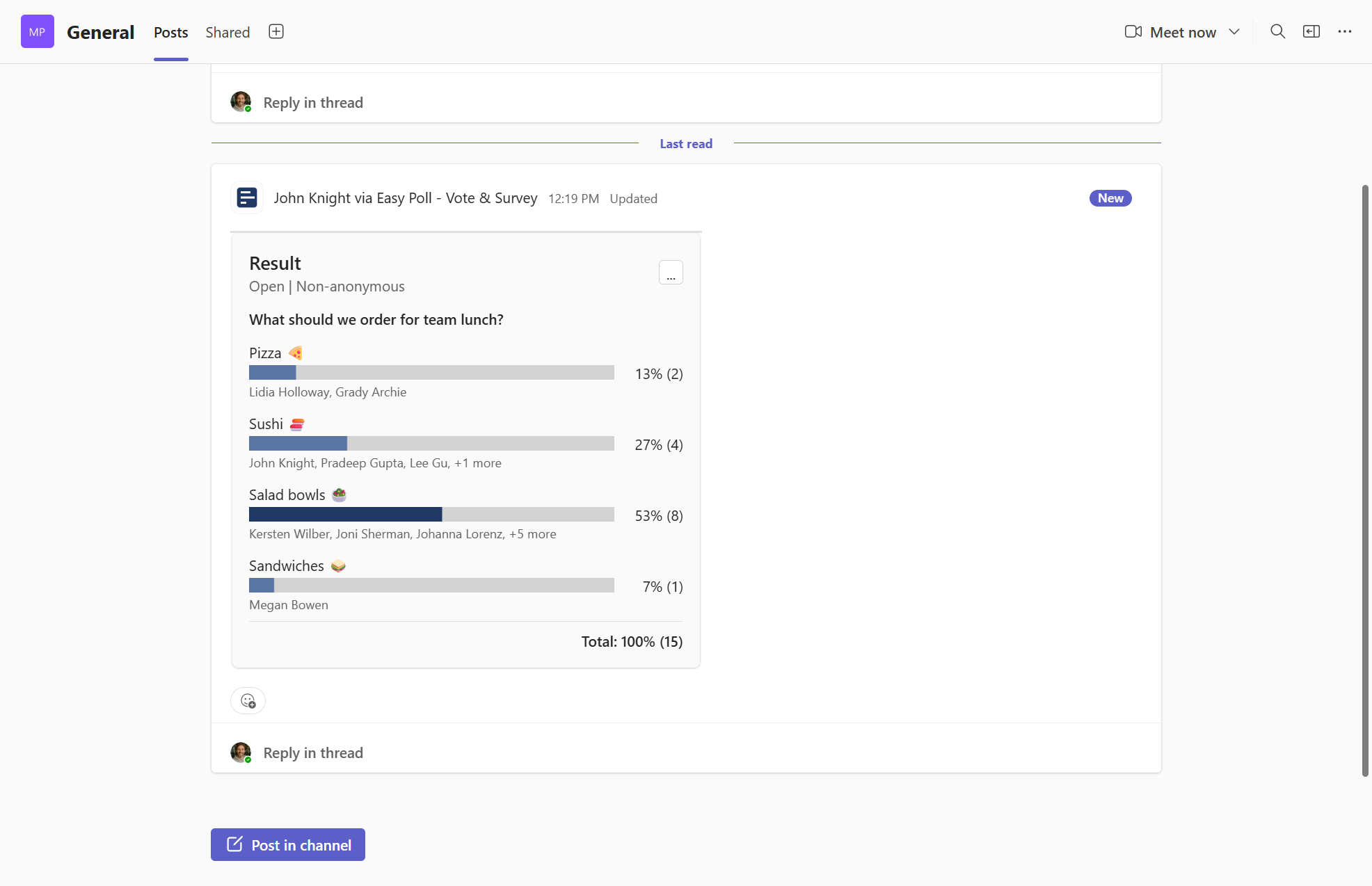
Team members can vote on the Easy Poll directly in Microsoft Teams chat.
Tips for creating better Microsoft Teams polls
A good poll is simple, specific, and easy to answer. Before posting your next poll, use these quick tips:
Ask one question at a time.
Avoid combining multiple topics in one poll. "What should we order for lunch?" is better than "What should we order for lunch and when should we meet?"
Use clear answer options.
Make sure every answer is easy to understand. Avoid options that overlap or confuse people.
Keep the number of answers manageable.
Three to five options are usually enough for a quick team decision.
Use polls for real decisions.
Polls work best when the team can see that their input matters. Use them for choices, feedback, preferences, and quick check-ins.
Post the poll where the conversation already happens.
If the decision is about a specific team or project, post the poll in that team's channel so the right people see it.
When should you use Easy Poll in Microsoft Teams?
Easy Poll is useful whenever you want a quick answer from your team without leaving Microsoft Teams.
You can use it to:
- Decide between several options
- Collect quick feedback
- Plan meetings or team events
- Ask for team preferences
- Run simple check-ins
- Gather opinions during remote or hybrid work
For example, instead of starting a long chat thread about lunch, meeting times, or project priorities, you can turn the question into a poll and let people vote directly in the channel.
Create your first Microsoft Teams poll with Easy Poll
Creating a poll in Microsoft Teams does not need to be complicated.
With Easy Poll, you can add the app to a channel, enter one question, add a few answer options, post the poll, and let your team vote directly in the chat.
Start with something simple, like:
What should we order for team lunch?
Then use the same approach for real team decisions, feedback, and planning. A clear poll can save time, reduce back-and-forth messages, and help your team make decisions faster, all inside Microsoft Teams.
Ready to try it?
Open Easy Poll in Microsoft Teams